Build 01
DIY 3D Scanner
A turntable photogrammetry scanner built from a printer motor, a hard drive bearing and an old phone – using only parts I already had.
- Cost
- €0 for me · about $20–30 if you buy the electronics
- Skills
- 3D printing · Soldering · Arduino · Blender
- Status
- Finished
3D scanners are expensive, so I wanted to see if I could build my own with zero dollars. This is what I came up with: a turntable that rotates an object, triggers a phone camera at every step, and gives me a set of photos I can turn into a 3D model.
The bird spinning on the home page was scanned with it.
How it works
Press one of three buttons:
- 4 – four photos at 90° steps. Upload them to Meshy AI and get a model in a few minutes.
- 36 – 36 photos at 10° steps, for proper photogrammetry in Meshroom.
- ∞ – showcase mode. It just spins, for nice product shots.
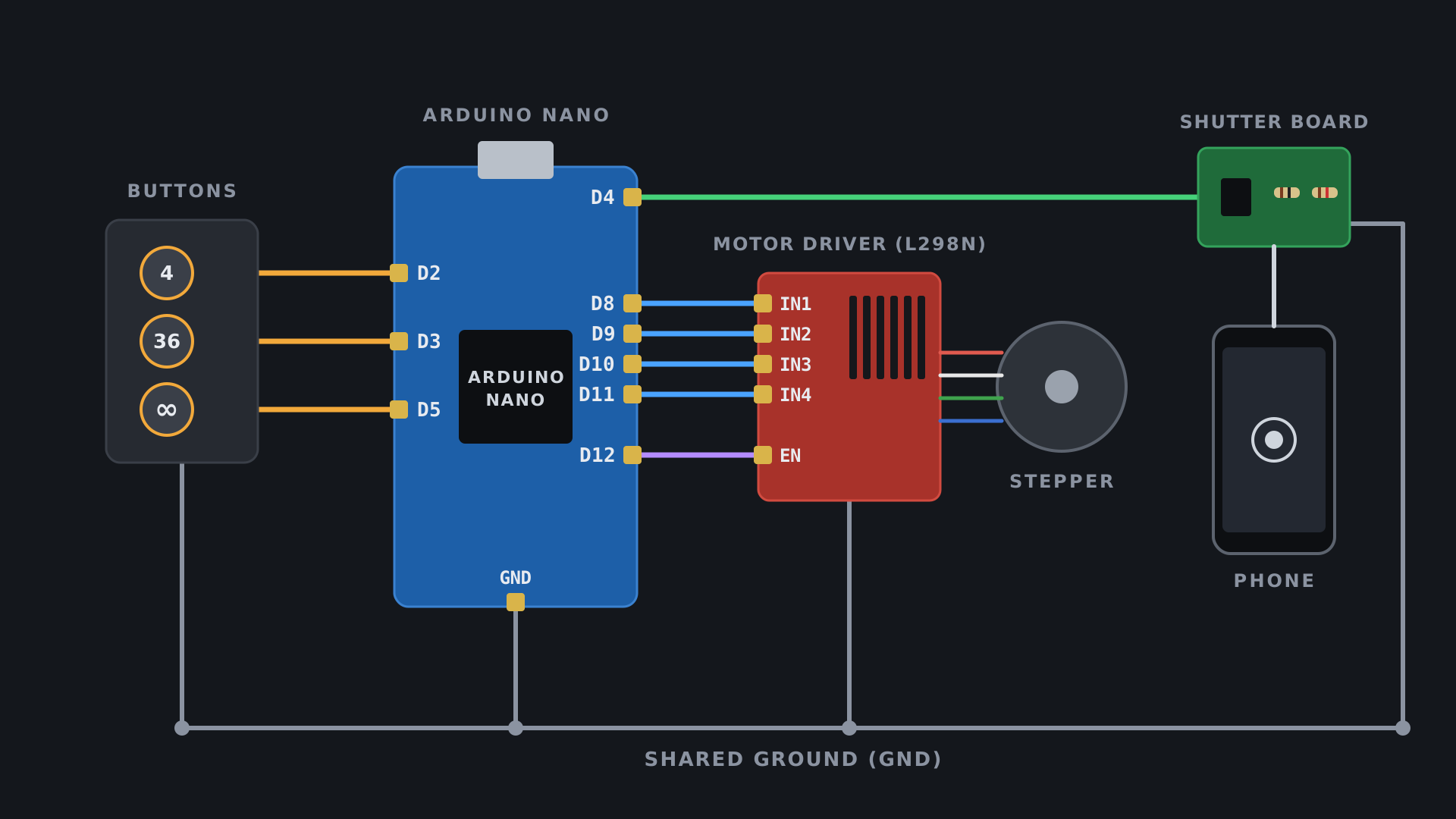
An Arduino Nano runs the show. It tells a motor driver to turn a salvaged printer stepper, and the stepper turns the plate through an 11:1 gear. Between moves, the Arduino fakes a headset button press on the phone, and the phone takes a photo.
The wiring
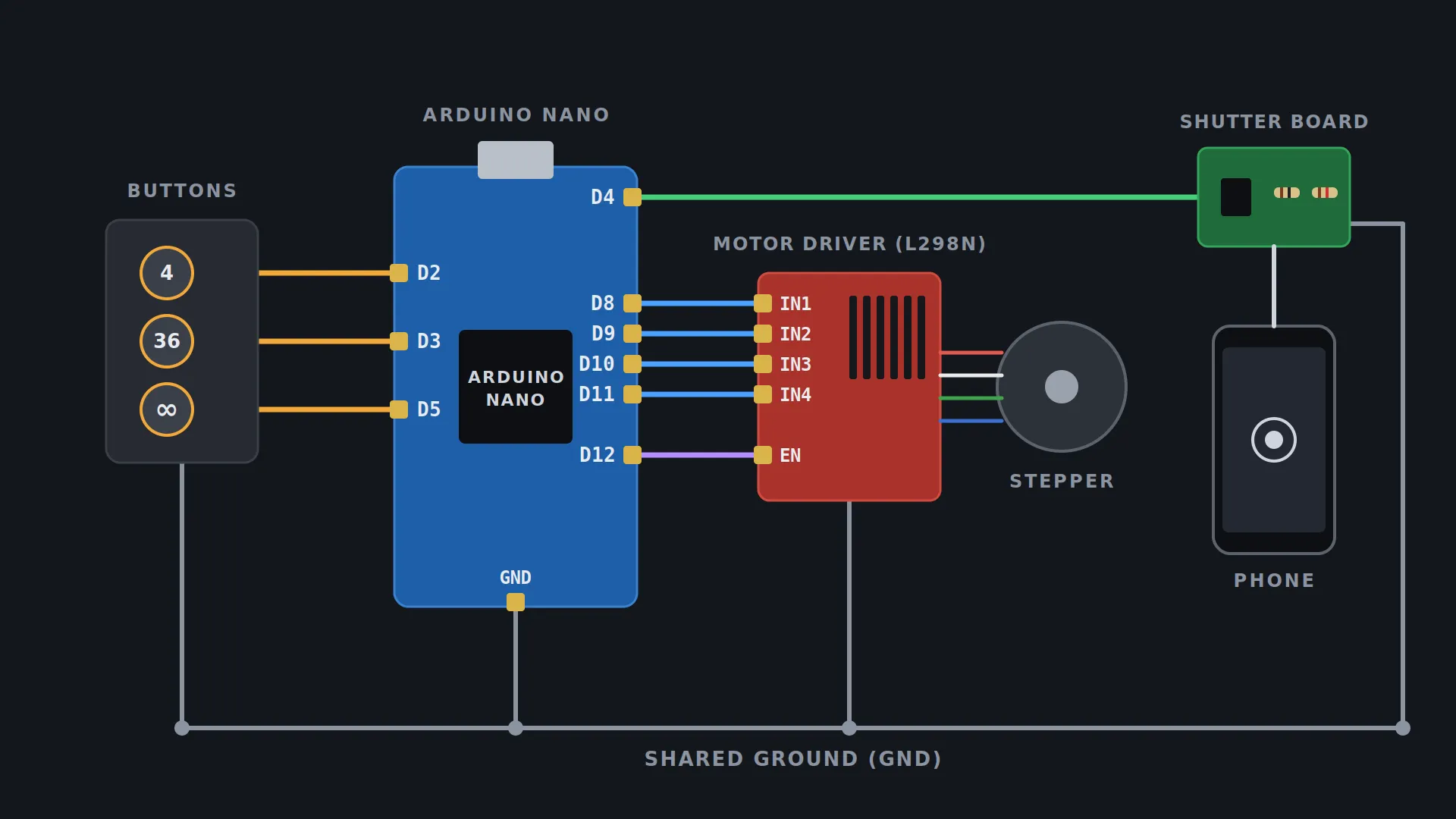
The buttons sit on pins D2, D3 and D5. The motor driver gets D8–D11 for the coils plus D12 to switch it on. The shutter board hangs off D4. Everything shares one ground.
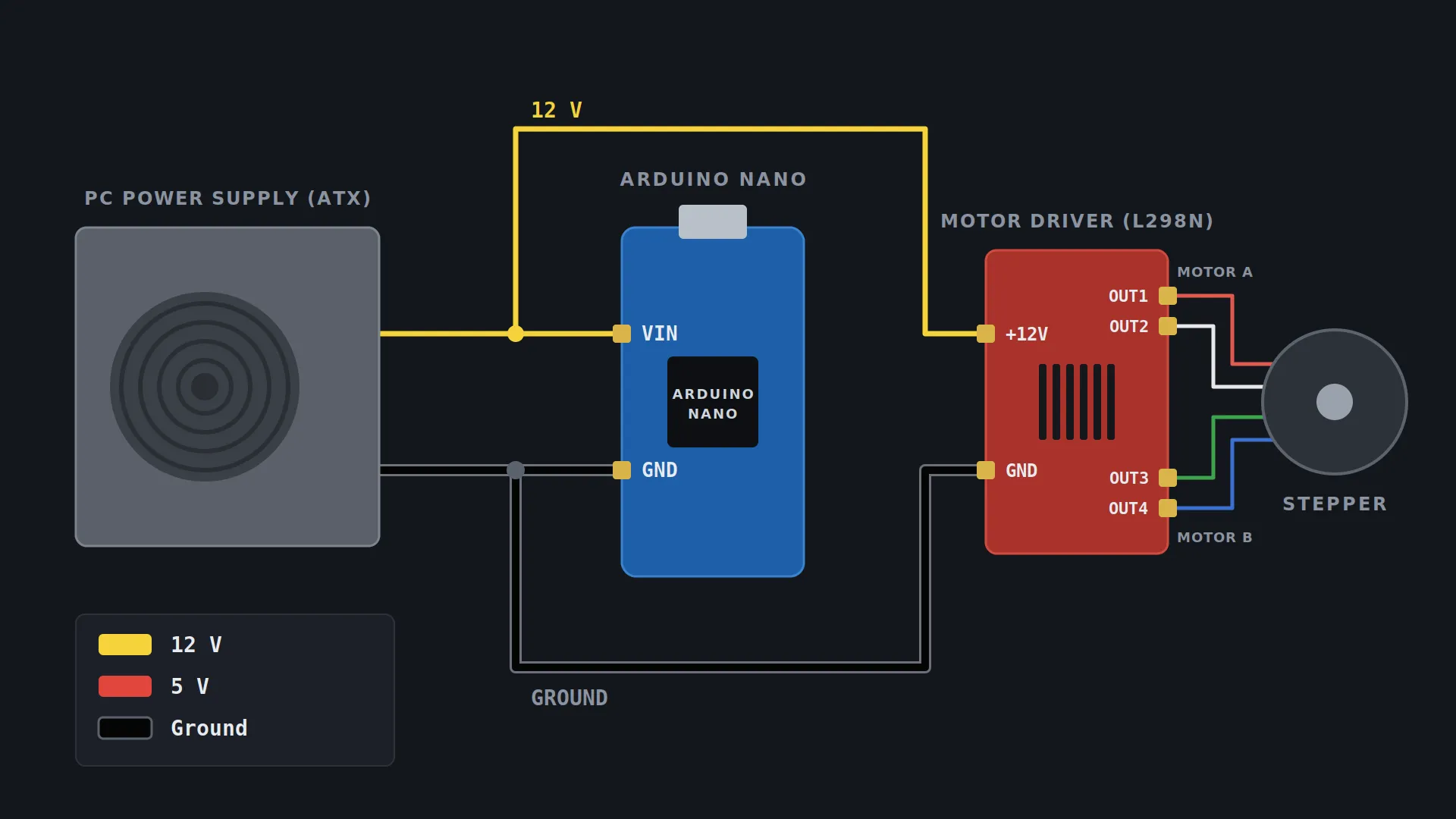
Power comes from an old PC power supply. Yellow is 12 V, red is 5 V, black is ground.
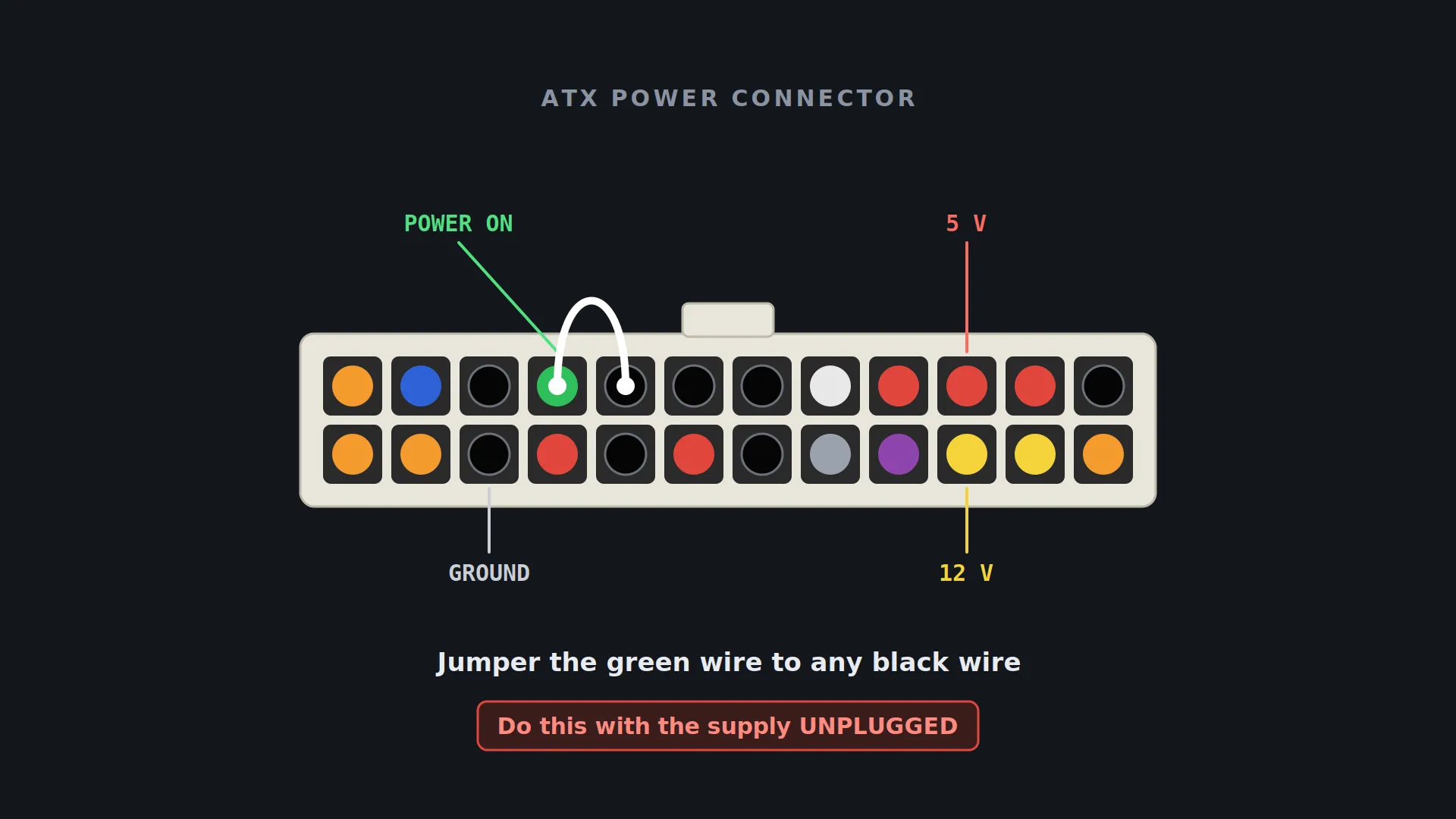
A PC power supply won’t switch on without a motherboard. The trick: connect the green wire to any black wire. Do this with the supply unplugged.
How the phone takes the photo
The phone doesn’t listen for voltage – it listens for resistance on the microphone line. That’s how one headset wire can handle several buttons.
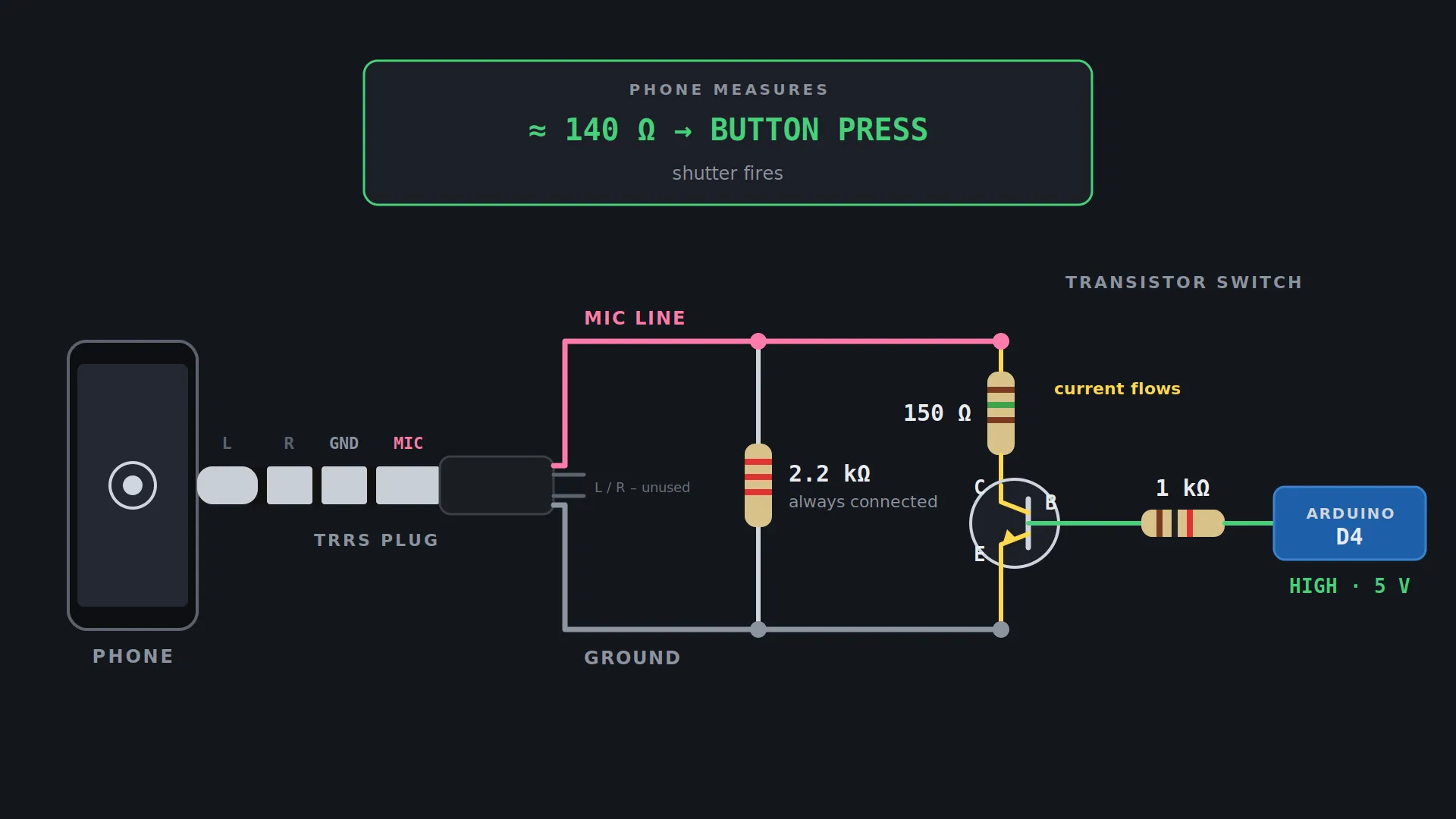
- A 2.2 kΩ resistor sits permanently across the mic line and ground. It tells the phone a headset with a button is plugged in. Without it, the phone thinks it’s just headphones and ignores everything.
- When the Arduino pulses D4, the transistor connects a 150 Ω resistor across the same two wires. The phone sees the resistance drop and reads it as a button press.
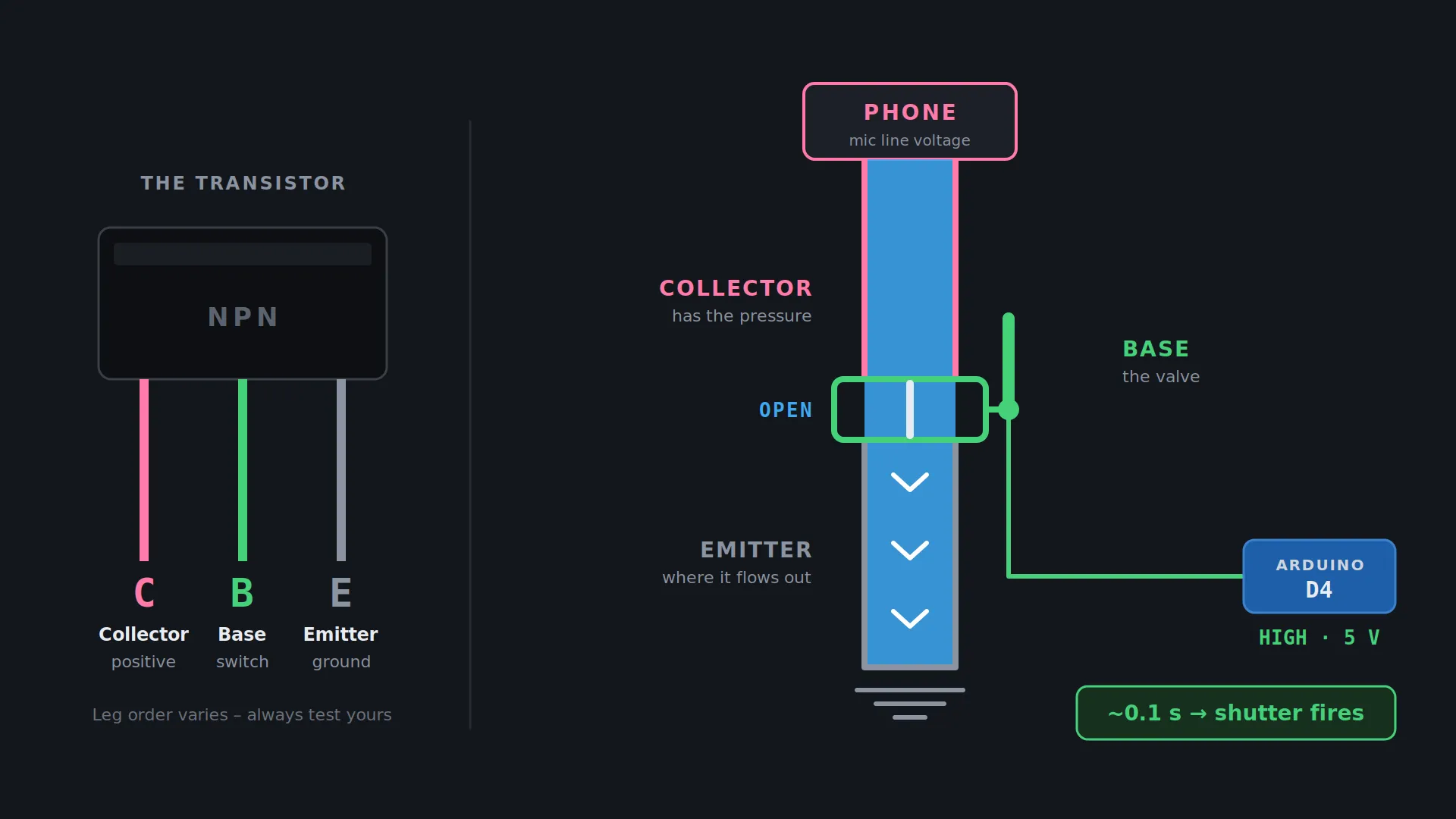
Think of the transistor as a valve in a water pipe. The collector has the pressure (here, the phone’s little mic voltage). The base is the valve. When the Arduino opens it, the flow goes through to the emitter, and the phone snaps a shot.
The mistake that cost me two days
My transistor came off a scrap board in a plain rectangular package – no flat side, no round side, nothing to tell the legs apart. So I guessed. I guessed wrong.
The nasty part: a backwards transistor still measures fine on a multimeter. It just never switches.
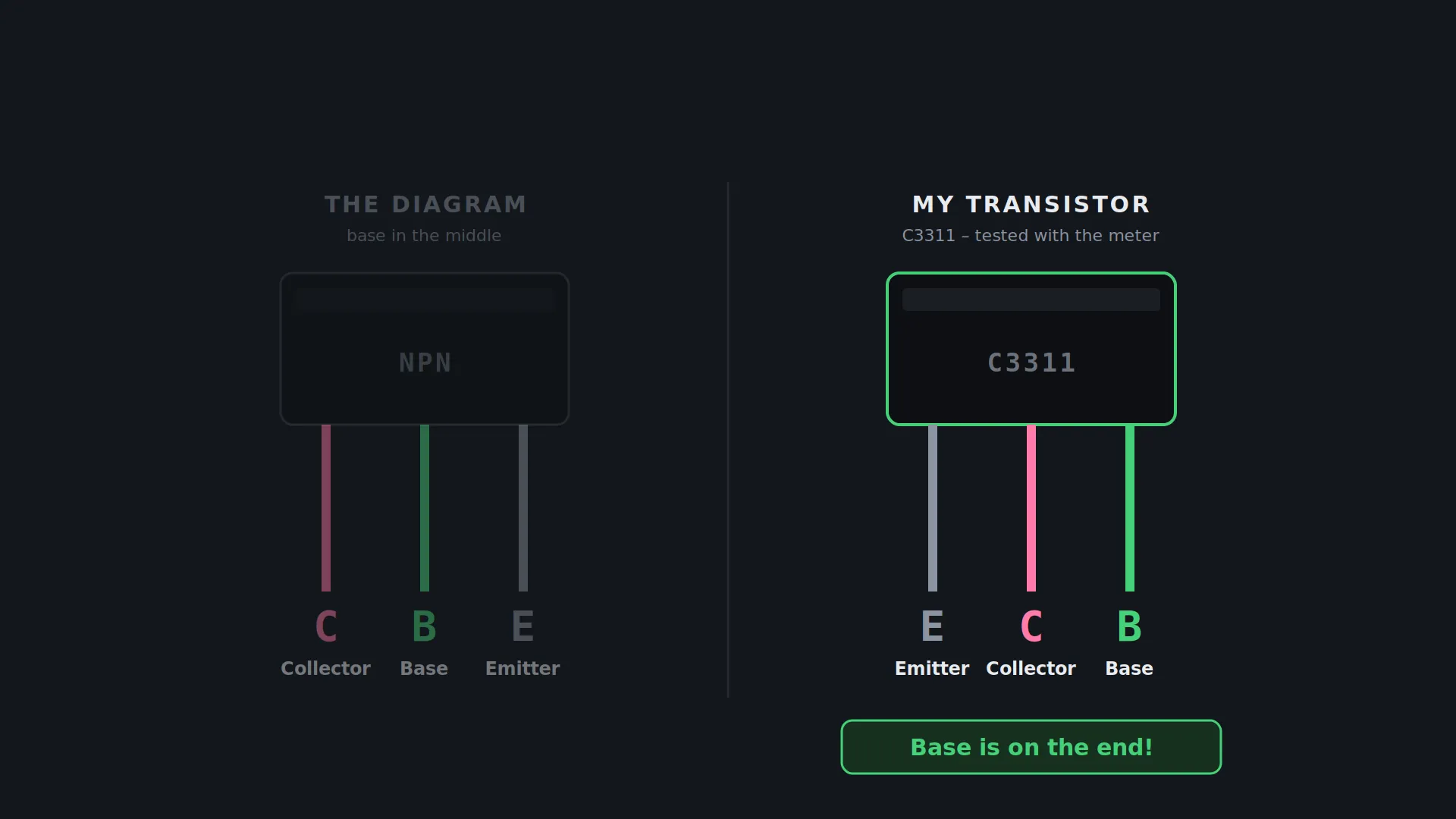
How to find the legs on yours:
- Multimeter in diode mode. Red probe on one leg, black on each of the others. The leg that reads about 0.6 V to both is the base. If that works with the red probe on it, it’s an NPN.
- Plug it into the meter’s hFE socket both ways round. Keep the orientation with the bigger number. The leg in the hole marked C is the collector, the one in E is the emitter.
- Mark the base right away. Bend it, nick it, nail polish – anything.
The code
The Arduino code was written with AI. The first version ran, but needed three real fixes:
- Step count. 48 steps per motor turn × 11:1 gearing = 528 steps per full rotation. 528 ÷ 36 isn’t a whole number, and the first version rounded down every time – 24 steps short by the end. Now every position is calculated from the start.
- Timing. It used to shoot the instant the motor stopped, so photos had shake. Now it moves, waits for the plate to settle, then shoots.
- Heat. The motor coils stayed powered during every pause. Now they switch off between moves. The machine doesn’t even get warm.
Power-on order matters: switch on the power first, then plug in the phone, then open the camera app. Otherwise the phone can catch a stray signal while the Arduino boots and take a photo you didn’t ask for.
AI vs photogrammetry
Meshy AI is great for anything that needs to look right – decorations, toys, figures. It’s not for parts that need exact measurements, because AI makes a close approximation, not a copy.
Photogrammetry measures the real shape. My first attempts failed. Photogrammetry expects the camera to move around a still object, and a turntable does the opposite – the background stays still while the object turns, and that confuses the software.
What finally worked in Meshroom:
- Use the default Photogrammetry pipeline, not the turntable preset.
- Draw one mask in GIMP – white over the plate and the area the object sweeps through, black everywhere else. The camera never moves, so the same mask works for all 36 photos.
- Point FeatureExtraction and PrepareDenseScene at the mask folder.
- Pick an easy object. Matte and textured beats shiny and smooth. My glossy toy car failed every time; the ceramic bird worked first go.
What I’d do differently
- Measure everything with a caliper before modelling. It saves reprints.
- Don’t model gears or threads in Blender. Use a parametric generator and import the STL. I used this one: Gear Generator on MakerWorld
- Shoot a second ring of photos from higher up. One ring misses the top of the object.
Questions? Ask in the comments on the video – I’m happy to help.
Bill of materials
- Arduino Nano
- L298N motor driver
- Stepper motor (salvaged from an old printer)
- Old hard drive (for the bearing)
- PC power supply (or any 12 V adapter)
- 3 × push buttons
- NPN transistor (2SC1740 or similar)
- Resistors: 150 Ω, 1 kΩ, 2.2 kΩ
- TRRS headphone cable
- Android phone with a headphone jack
- Jumper wires
- 3D-printed parts (PETG)
Software
- Open Camera – locks focus, ISO and white balance
- Syncthing – sends the photos from phone to laptop over Wi-Fi
- Meshy AI – quick models from 4 photos
- Meshroom – free photogrammetry
- Blender – design and cleanup
Newsletter
Get the next build
One email when a new build is out. No spam, unsubscribe anytime.